MissionOS User Guide
Know your next step.

Welcome to MissionOS
MissionOS turns what matters to you into a plan you can follow, then tells you the one thing worth doing next.
You tell MissionOS what you care about and what you're working towards. It weighs your deadlines, the order things need to happen in, your energy and your time, and suggests your next step. When plans change, the suggestion changes with them, and you can always see why it chose what it did.
The building blocks
- Mission
- One sentence about the life you're building. Everything else supports it.
- Priorities
- The areas that matter most, such as Health & Fitness or Creativity. Priorities weight every suggestion.
- Projects
- Goals with a target date, such as "Spring half marathon". A Project groups its Actions and earns a Project Score.
- Actions
- The concrete steps: "Buy running shoes", "Get three quotes". Actions are what Today suggests, scores and tracks.
- Targets and Metrics
- How you'll know a Project has worked: a number to reach, Actions to finish, a routine to keep, or your own judgement.
- Routines
- Things you do on repeat, like a morning stretch or reading before bed.
- mOS
- MissionOS's built-in guide. It helps you set up, answers questions about your plan and takes you through your weekly review.
Getting started
The first time you open MissionOS, Today is empty and offers a Start here card. Tap it, or go to Settings › Getting started, to build your plan with mOS.
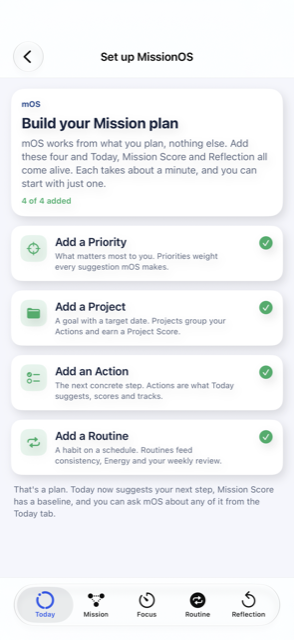
- Add a Priority. What matters most to you.
- Add a Project. A goal with a target date.
- Add an Action. The next concrete step towards it.
- Add a Routine. A habit on a schedule.
Each takes about a minute, and you can start with just one. Once there's something in your plan, Today suggests your next step, your Mission Score has a starting point, and you can ask mOS about any of it.
Moving around
Five tabs run along the bottom: Today, Mission, Focus, Routine and Reflection. The same four buttons sit at the top of each one:
- Settings (the gear), top left.
- Capture Inbox (the tray), with a badge when a recording is ready to review.
- Capture (the microphone), to record a thought or a meeting.
- Ask mOS (the speech bubbles), top right.
Today
Today answers one question: what should I do next?
Suggested next
The large card is the Action MissionOS thinks is most worth doing now, with its score out of 100, the Priority it supports and how long it should take. Tap Open Action to see it in full, or View reasons to see exactly what lifted it to the top: a deadline, a Priority, other work waiting on it, or a Project you've chosen to focus on.
Below it, You could also… offers a couple of good alternatives, and Today's Actions opens the full list for the day.
Your score and your day
At the top, the Mission Score sits beside two rings: how much of today's planned work is done, and how much of this week's. On a day with nothing due, the ring says so ("Nothing due today") rather than counting it against you.
Capacity and Energy
Capacity compares the work you've planned with the time you've said you have (set it in Settings › Planning & Capacity). Energy is set by you, or estimated from Apple Health if you connect it. Both help MissionOS choose sensibly: a light task when you're tired, a deep one when you have the time.
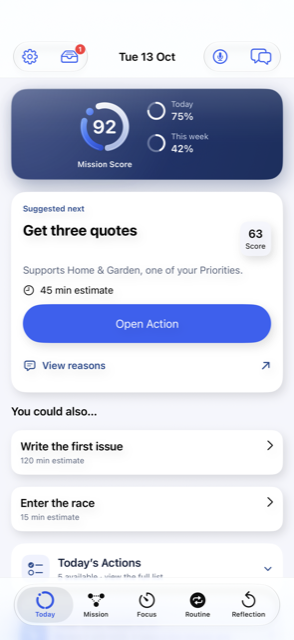
- Settings
- Capture Inbox
- Capture
- Ask mOS
- Mission Score and progress
- Open the suggested Action
- Why it was suggested
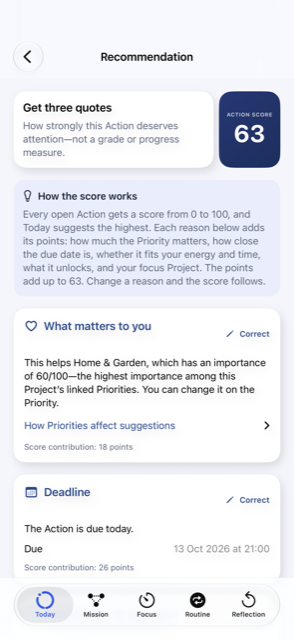
Why this was suggested
Tap View reasons on any suggestion to see how its score was built: how the scoring works, what matters to you (the Priorities it supports), its deadline, how much it contributes to your goal, and anything else that moved it up or down. Where a reason comes from a choice you made, such as a Priority, you can change it from here.
Your Mission, Projects and Targets
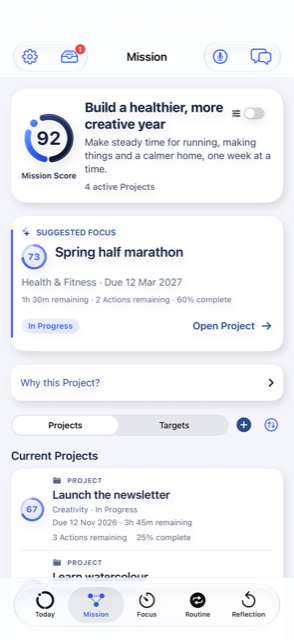
The Mission tab is your whole plan in one place.
- My Mission at the top, with your Mission Score and how many Projects are active. Tap the switch on the card to edit it.
- Suggested focus: the Project that most needs your attention now, with its score, due date and work remaining. Why this Project? explains the choice.
- Projects and Targets: switch between the two lists. Use + to add one and the arrows button to sort the list.
Inside a Project
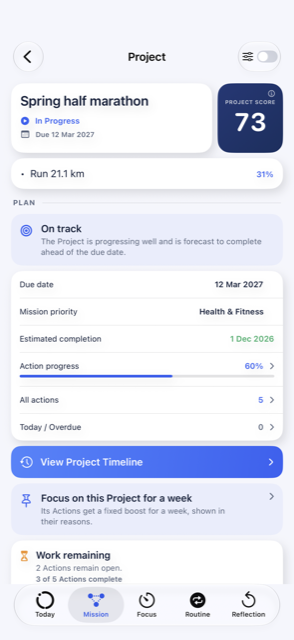
A Project shows its Project Score, its due date, the Priorities it supports, progress on its Actions and anything that needs attention, such as an overdue Action. From here you can:
- see all its Actions and add more;
- open the Project Timeline;
- choose Focus on this Project for a week, which gives its Actions a fixed boost for seven days (you'll see it in their reasons);
- add Targets, and see how much work remains.
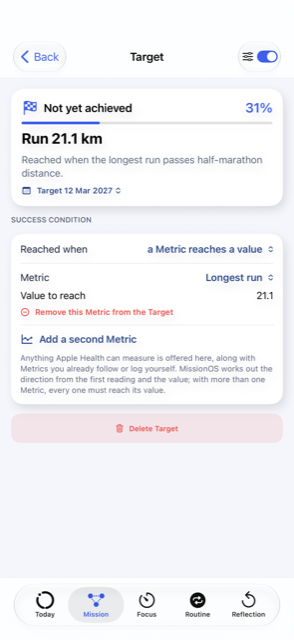
Targets
A Target is how you'll know the Project worked. It can be met when a Metric reaches a value (for example, a run of 21.1 km), when certain Actions are complete, when a routine has been kept, or when you say so. An Action can also wait for a Target to be reached before it becomes available.
Editing
Most screens open read-only so nothing changes by accident. Flip the switch in the top-right corner to edit; leaving the screen saves your changes.
- Edit your Mission
- Why this Project?
- Projects or Targets
- Add a Project
- Sort the list
A closer look
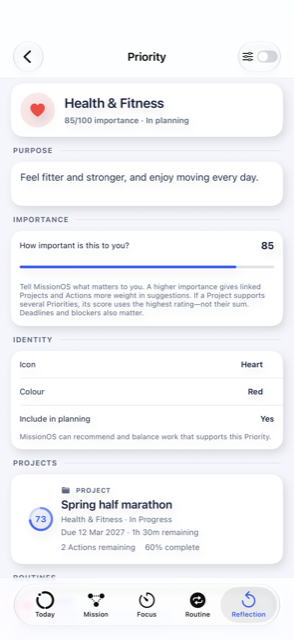
Tap any Project, Target or Priority to open it. Each one shows how it's doing and what it's connected to, and the switch in the top-right corner lets you edit it.
- Edit
- Project Timeline
- Focus on it for a week
Actions
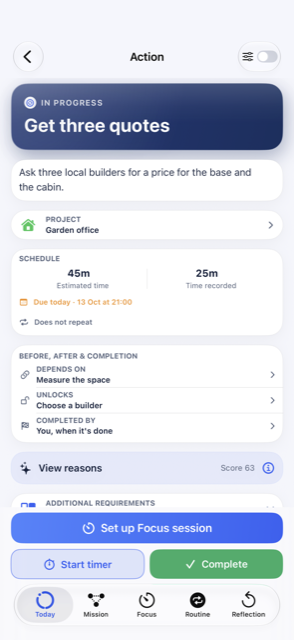
An Action is one concrete step. Its page shows everything about it.
- Status and title in the blue header, with a short description below.
- Project it belongs to.
- Schedule: estimated time, time recorded so far, due date and whether it repeats.
- Before, after & completion: what it depends on, what it unlocks, and what completes it (you, or a Health total, for example).
- View reasons: its current score and why.
- Additional requirements: the kind of work it is, where it happens, and any need such as daylight.
At the bottom: Set up Focus session, Start timer and Complete.
Dependencies
If "Choose a builder" depends on "Get three quotes", it won't be suggested until the quotes are in. Finishing one Action can unlock the next.
Notes, photos and documents
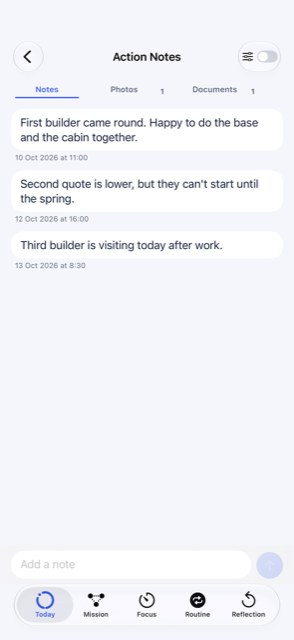
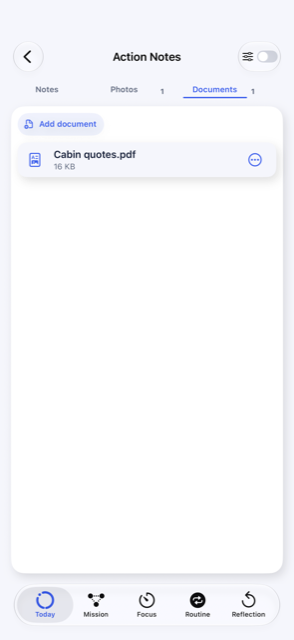
Each Action has a Notes page with dated notes and links, photos, and documents. You can attach PDFs, text, Markdown, CSV, Word, Excel, PowerPoint, Pages, Numbers and Keynote files, up to 20 MB each. Tap a document to preview it, or use its menu to share or delete it.
Location and daylight
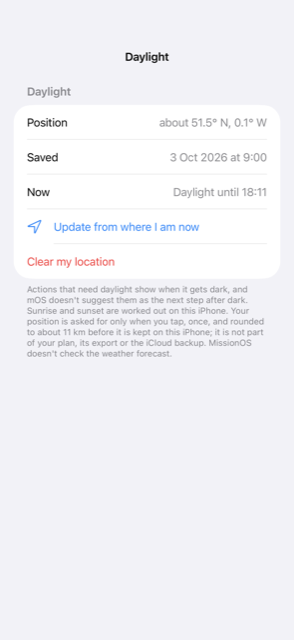
Tap Use current location to label where an Action happens. If an Action needs daylight, MissionOS shows how long the light lasts where you are ("Daylight until 18:42") and won't suggest it after dark. See chapter 12.
- Edit
- Depends on and unlocks
- Score and reasons
- Set up a Focus session
- Start a timer
- Complete
The Notes page
Open an Action's notes to keep everything about it in one place. Three tabs along the top hold Notes, Photos and Documents, each with a count.
- Add a note
- Add a document
- Open, share or delete
Focus
Focus helps you give one thing your full attention, and records the time it really takes.
Start a session
- On the Focus tab, choose Actions, Routines or Free Focus.
- Choose your work.
- Pick Timer (15, 25 or 50 minutes, or Custom) or Stopwatch.
- Tap Start Focus.
You can also start from an Action with Set up Focus session.
During a session
The timer fills the screen. Pause and Resume, Finish for now (your time is saved and the Action stays open), or Complete to finish and mark the Action done. Details opens the Action, and the notes button keeps session notes. Reset focus timer restarts the clock without deleting time already recorded.
Turn your iPhone on its side for a landscape view: the timer on the left, the details on the right, and the controls always in reach.
Swipe down (the arrow at the top left) to use the rest of the app while the session keeps running. Focus also shows on your Lock Screen, and you can run it from your Apple Watch.
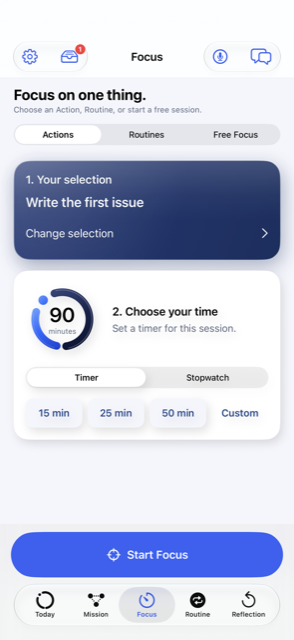
- Actions, Routines or Free Focus
- Choose your work
- How long
- Timer or Stopwatch
- Start Focus
Focus mode
While a session runs, Focus mode fills the screen so there's nothing else to look at. The ring shows how much of the session has passed, and the clock counts down (Timer) or up (Stopwatch).
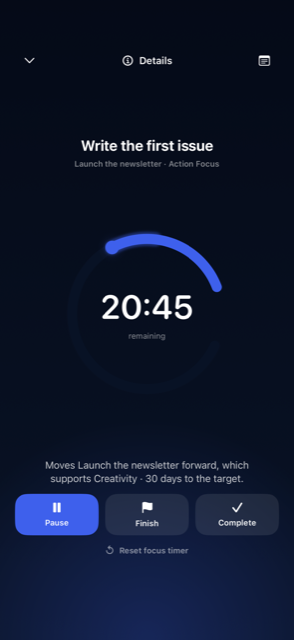
- Back to the app
- Details
- Session notes
- Pause
- Finish for now
- Complete
- Reset the timer
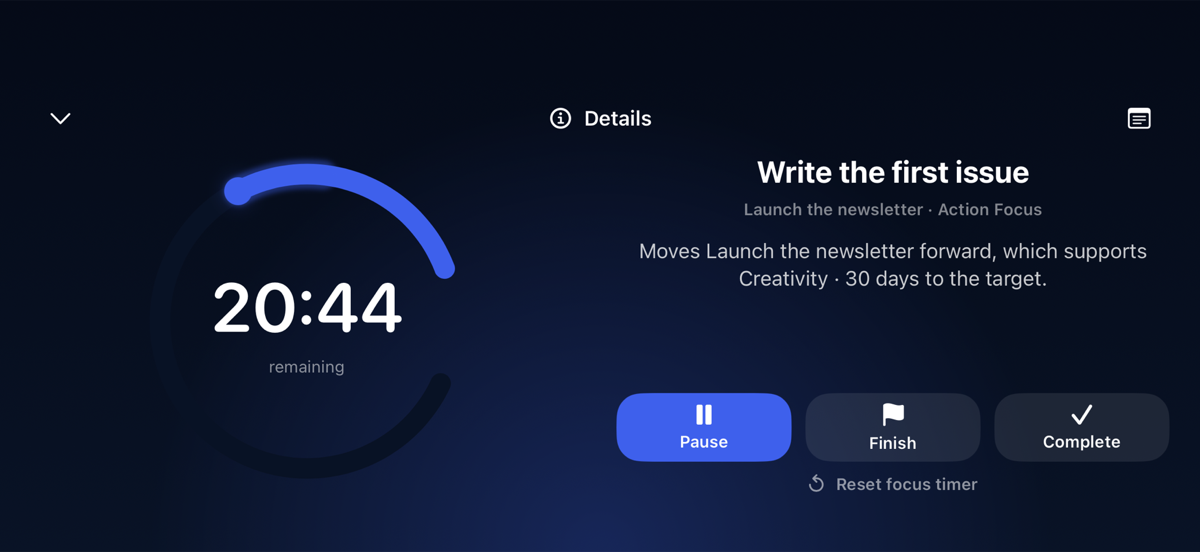
- Pause
- Finish for now
- Complete
Routines
The Routine tab shows today's routines and how many are done.
- Now, All day and Completed filter the list.
- Tap the circle to tick a routine, or Skip this time if it isn't happening today.
- The arrows move between days; the grid button shows your routine categories; + adds a routine.
- View all Routines lists every routine, earlier, later and anytime.
Not sure where to start? Add more with mOS asks a few questions and suggests small routines that fit your day.
With Apple Health connected, a routine such as "Evening walk" or "10,000 steps" can tick itself when the day's total is reached.
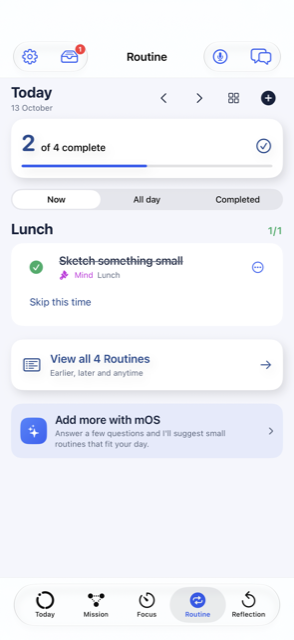
- Now, All day or Completed
- Previous and next day
- Categories
- Add a routine
- Tick it off
- Skip this time
- Add more with mOS
Capture
Get it out of your head. Capture records a thought, a meeting or a site visit, and turns it into Actions you choose to keep.
Record
Tap the microphone at the top of any tab, then Tap to capture. Tap again to stop. A recording can last up to three hours, and keeps going when your iPhone is locked. Recording other people may need their consent.
Review
Your recording is transcribed on your iPhone. On iPhones with Apple Intelligence, MissionOS also reads the transcript and finds the Actions and their dates, the decisions and the open questions. When it's ready, the Capture Inbox (the tray at the top left) shows a badge.
Open the capture to see the summary and the suggested items. Nothing goes into your plan until you accept it. You can add it to an existing Project, start a New Project from this capture, play the original recording, or share it. A capture can also become a PDF report to send.
Other ways in
- Record on your Apple Watch; the recording is sent to your iPhone.
- Share a voice memo or audio file to MissionOS from another app.
- Set the Action button on your iPhone to Capture.
Without Apple Intelligence you still get the full transcript; the summary and suggestions need it.
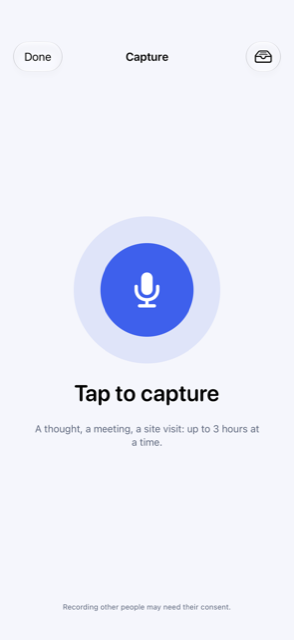
- Start recording
- Capture Inbox
Reviewing a capture
Captures wait in the Capture Inbox until you've looked at them. Nothing reaches your plan until you accept it.
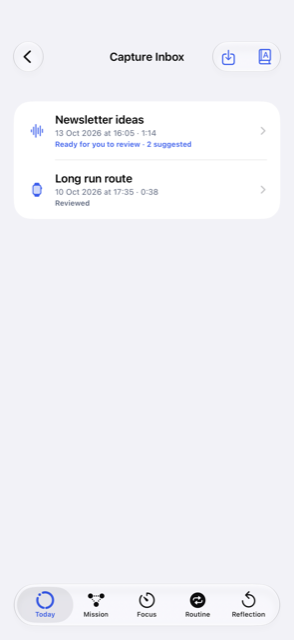
- Open a capture
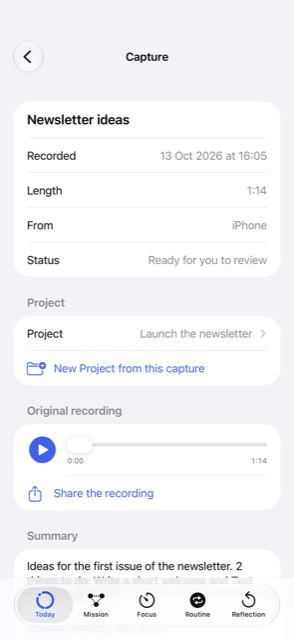
- New Project from it
- Play the recording
- Share the recording
Asking mOS
Tap the speech bubbles at the top right of any tab to talk to mOS. It opens with suggestions that fit where you are, such as What should I do now?, Give me a quick win, What is most urgent?, What is blocking me? or What have I achieved?. You can also type or dictate your own question.
mOS answers from your own plan, and runs on your iPhone. It can suggest changes, such as a new Action or a routine, but it always asks before anything is added or changed.
Drafting from a note, photo or file
Have a plan on paper, in a photo or in a document? With Plus, choose Add from a source when adding a Project: scan a page, choose a photo or file, or paste a note. mOS drafts a Project with its Actions, and you check the draft before anything is created.
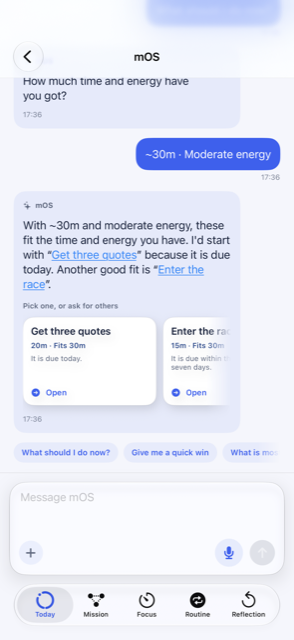
- Open a suggestion
- Ask a suggested question
- Attach a photo or file
- Dictate
- Send
Turning a note into a Project
Choose where your plan is: a photo or screenshot of a page, a file such as a PDF, or a note you paste or type. mOS reads it on your iPhone and drafts a Project with its Actions. You check the draft, change anything you like, and only then is it created.
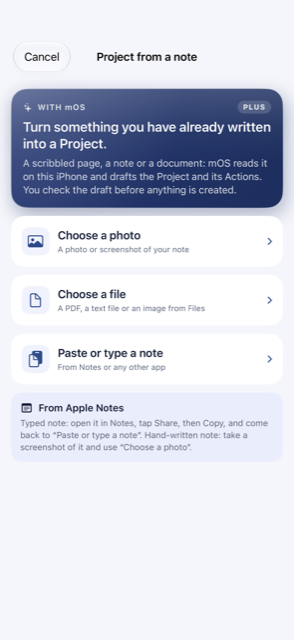
- Choose a photo
- Choose a file
- Paste or type a note
Reflection and your weekly review
The Reflection tab looks back over your week: Actions completed, Focus time logged, how your routines went, a day-by-day chart, finished Projects and recent Focus sessions.
The weekly review
Once a week, Open your review takes you through it one card at a time: your Mission Score, what you completed, your routines, and what stood out. Then it asks what worked for you, and what you'd keep or change. It takes a few minutes. Save draft lets you finish later.
Your answers are kept with the week, so you can look back on them. If you change a Priority during the review, the change takes effect straight away.
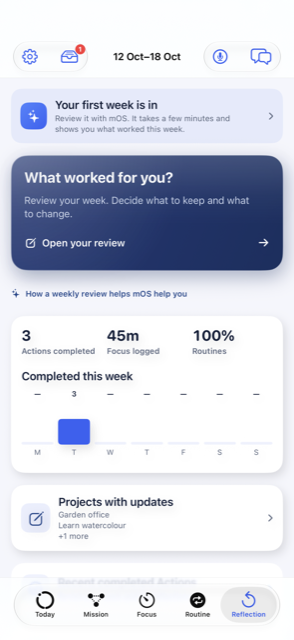
- Open your weekly review
Inside the weekly review
The review is a short sequence of cards. The bar at the top shows how far through you are. Each card moves on by itself after a few seconds; tap pause to stay on it, or use Back and Next.
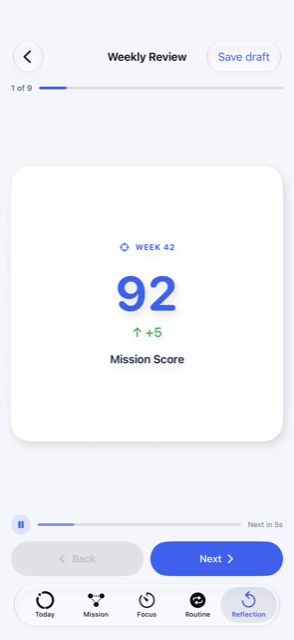
- Pause the cards
- Back
- Next
- Save draft
Mission Score and Project Scores
Scores show momentum. They're not grades.
- Mission Score (0 to 100) reflects progress across your whole plan. A new plan starts from a neutral point and grows as you complete planned work.
- Project Score shows how one Project is moving, given what's due and what's done.
- Action scores rank what to do next. They're why Today suggests what it does, and View reasons breaks them down.
- Today and This week rings show how much of the planned work for each period is done. A day with nothing due isn't counted as a missed day.
Tap any score to see what's behind it.
Apple Health and daylight
Apple Health (optional)
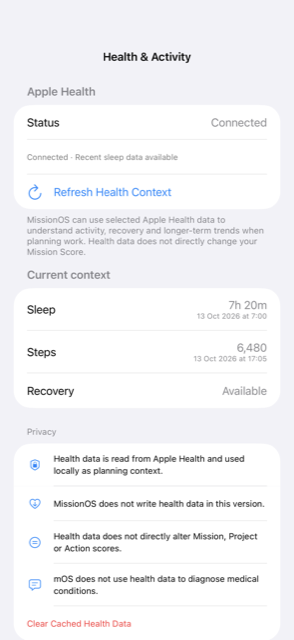
Connect in Settings › Health & Activity and choose what MissionOS may read. It can then:
- estimate your Energy from activity and sleep;
- tick routines when a day's total is met, such as steps;
- complete an Action when a Metric reaches a value;
- follow Metrics for your Targets.
MissionOS only reads from Health and never writes to it. Health data stays on your iPhone and isn't included in iCloud Backup or exports.
Daylight
For Actions that need daylight, MissionOS works out sunrise and sunset on your iPhone. It asks for your location once, keeps only an approximate position (rounded to about 11 km), and never tracks you. Manage or clear it in Settings › Daylight. MissionOS does not check the weather: needs such as "Dry" are notes for you.
The settings
Both live under Settings › Integrations, and both can be cleared at any time.
Apple Watch
Your next step on your wrist: do it, time it, tick off routines and see how your week is going, without taking out your iPhone.
Install MissionOS on your Apple Watch from the Watch app on your iPhone. The watch app works with MissionOS on your paired iPhone: your iPhone sends it a summary of your plan, and anything you do on the watch is sent back. If your iPhone isn't in reach, the watch says so and sends your changes as soon as it is.
The controls
Moving around
Swipe left and right between five pages: Today, Projects, Focus, Routines and Score. Turn the Digital Crown to scroll a page. At the top of every page, the MissionOS mark opens the watch settings, and + adds an Action (Plus): speak it, scribble it or type it, and choose its Project.
Today
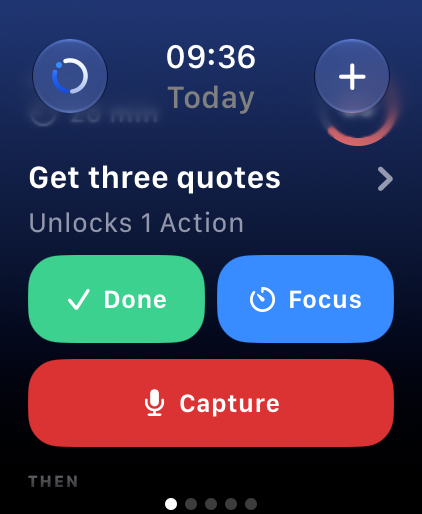
Your next Action, with how long it should take and its score. Tap Done when it's finished, or Focus to work on it against a timer. Tap its title for Log time and, with Plus, Add note. Below are the Actions that come next, and Capture to record a thought or a meeting (Plus); the recording is sent to your iPhone to be transcribed.
Projects
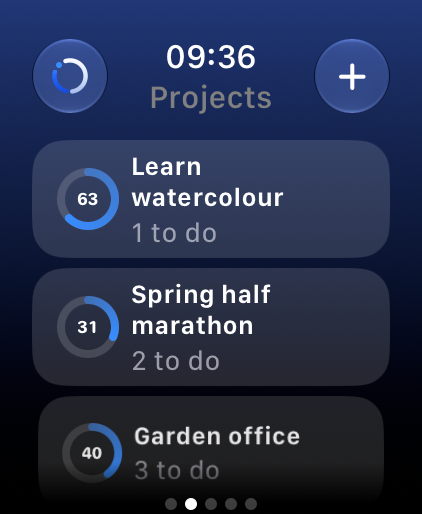
Your open Projects with how far along each one is and how many Actions are left. Tap a Project to see the Actions that are ready now.
Focus
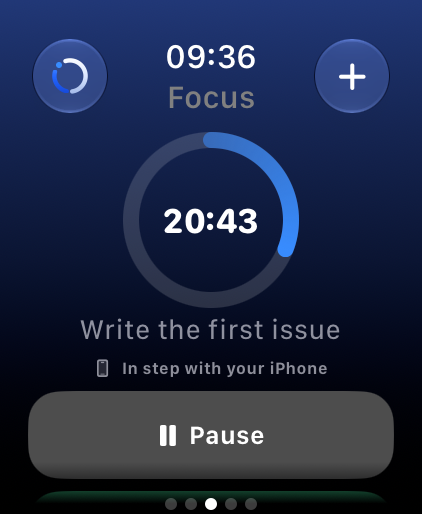
Choose an Action and a length, and start. When the time is up, mark it done, or log the time and leave it open. A Focus session started on your iPhone shows here too, in step, and you can complete or finish it from your wrist.
Routines
Your next routine, ready to mark done, then the rest of today's routines by time of day. If a Focus session is already running, Open Focus takes you to it.
Score
Your Mission Score, how many Actions you've completed today, how many routines are done, and this week's totals.
Away from your iPhone
You can keep using MissionOS on your watch when your iPhone isn't in reach. Anything you do, including Actions you add, waits on the watch under Waiting for iPhone and is sent as soon as your iPhone is back in reach. On your iPhone, Today then shows what you added on your watch, with Add details to fill in more, or Looks fine.
Double tap
On Apple Watch Series 9, Ultra 2 and later, tap your finger and thumb together twice. On Today, double tap marks your next Action Done. During a Focus session it presses Pause (or Resume), and when a watch timer has finished it presses Mark done.
Settings, complications and the Action button
- Settings (tap the MissionOS mark): have the watch say your next Action out loud when you open MissionOS, or ask it to Speak it now, and Refresh from iPhone.
- Complications (Plus): add Mission Score, Next Action or Routines to your watch face.
- Action button on Apple Watch Ultra: in the watch's Settings › Action Button, choose Shortcut, then MissionOS Start Focus to start Focus on your next Action with one press. Start Capture is there too.
Free includes Today, Done, Focus, routines and your score on the watch. Plus adds Capture, adding Actions and notes from your watch, and live complications.
The five pages
Swipe left and right to move between them; the dots at the bottom show which page you're on. When a page has more below, it fades out above the dots: turn the Digital Crown to see the rest.
- Settings
- Add an Action
- Open the Action
- Done (or double tap)
- Focus
- Capture
- Open a Project
- Pause (or double tap)
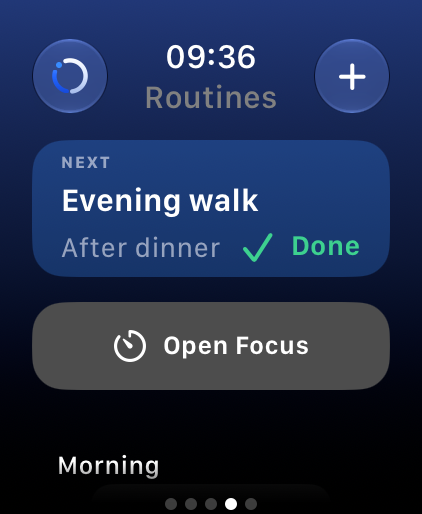
- Mark it done
- Open the running Focus
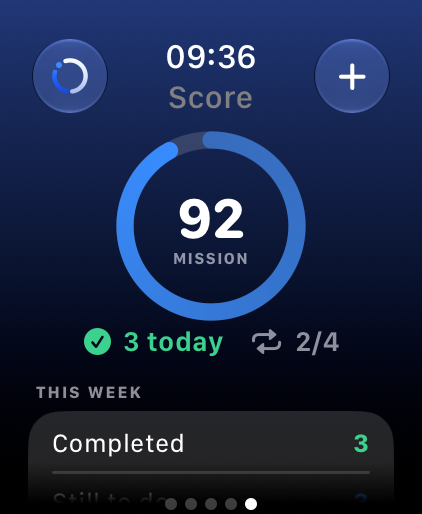
- This week
Widgets, Siri and shortcuts
Widgets and Lock Screen
Add MissionOS widgets to your Home Screen for your next Actions, today's routines and your Mission Score. A running Focus session shows on the Lock Screen.
Siri, Shortcuts and Control Centre
Ask Siri, or use the Shortcuts app or Control Centre, to Start Focus, hear What's Next, or start a Capture. The iPhone's Action button can be set to Capture.
Your data: backup, export and privacy
Saved as you go
MissionOS saves your plan on your iPhone after every change.
iCloud Backup
In Settings › iCloud Backup, automatic backup copies your plan to your own iCloud when you leave the app, if it has changed. It uses the iCloud account your iPhone is signed in to, so there's nothing to sign in to, and Vacuum State can't read it.
Turn on Back up attachments to include photos, documents, Capture recordings and Capture transcripts and summaries. Tick the kinds you want. Recordings back up on Wi-Fi only unless you change that.
On a new iPhone, MissionOS offers the plan from iCloud: tap Use this plan, then close and reopen the app. It never replaces a plan without asking.
Export and import
Settings › Export & Import makes one file with your whole plan. Include photos, documents and Captures if you like. Import brings a file back in, which is handy for a one-off move between devices or a copy of your own.
Privacy in brief
- No account, no analytics, no adverts, no tracking.
- Suggestions, transcription and summaries run on your iPhone.
- Apple Health is read-only and never leaves your iPhone.
- Deleting MissionOS deletes everything it stored on your iPhone.
Read more in Settings › Privacy, or in the full privacy policy.
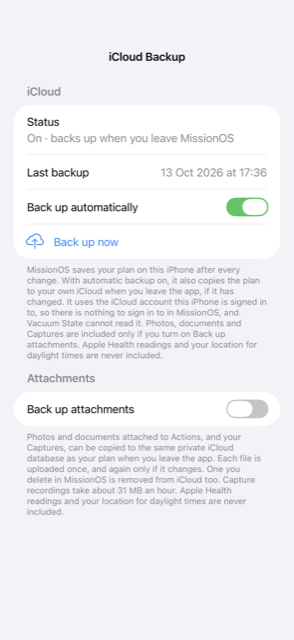
- Automatic backup
- Back up now
- Back up attachments
MissionOS Plus
MissionOS is free to use with up to three ongoing Projects. MissionOS Plus adds more.
| Feature | Free | Plus |
|---|---|---|
| Ongoing Projects | 3 | Unlimited |
| Today, Focus, Routines, Reflection, mOS | ✓ | ✓ |
| Capture with transcripts | ✓ | ✓ |
| Capture summaries | Short recordings | Full meetings, with reports |
| Draft a Project from a note, photo or file | – | ✓ |
| Share to MissionOS from other apps | – | ✓ |
| Morning brief and weekly summary | – | ✓ |
| Apple Watch | Next Action, Done, Focus, routines, score | Also Capture, voice and live complications |
Try it free. Plus starts with a 14-day free trial of everything in Plus. After that it's £3.99 a month or £37.99 a year, charged to your Apple Account. It renews automatically unless you cancel at least 24 hours before the end of the period.
Manage or cancel in Settings › Plan & Subscription, which also has Restore purchases. If Plus ends, nothing is deleted: you choose up to three Projects to keep active and the rest are paused until you need them.
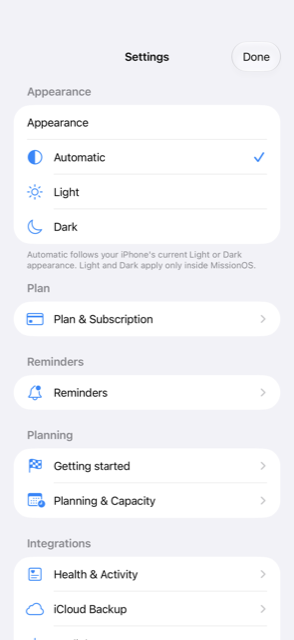
Settings and help
Tap the gear at the top left of any tab.
- Appearance
- Automatic, Light or Dark.
- Plan & Subscription
- Your plan, Plus, and Restore purchases.
- Reminders
- Off by default. Turn on the kinds you want. Reminders are made on your iPhone.
- Getting started
- Set up your plan with mOS.
- Planning & Capacity
- How much time you have each week.
- Health & Activity
- Connect Apple Health.
- iCloud Backup
- Automatic backup and attachments.
- Daylight
- Your approximate location for daylight times.
- Capture Inbox
- Recordings waiting for review.
- Export & Import
- Your whole plan as one file.
- Privacy, Terms, Help
- The privacy summary, Terms of Use, Help & Support and Send feedback.
Help and support
Support: vacuumstate.co.uk/missionos/support
Email: hello@vacuumstate.co.uk
Privacy questions: privacy@vacuumstate.co.uk